|
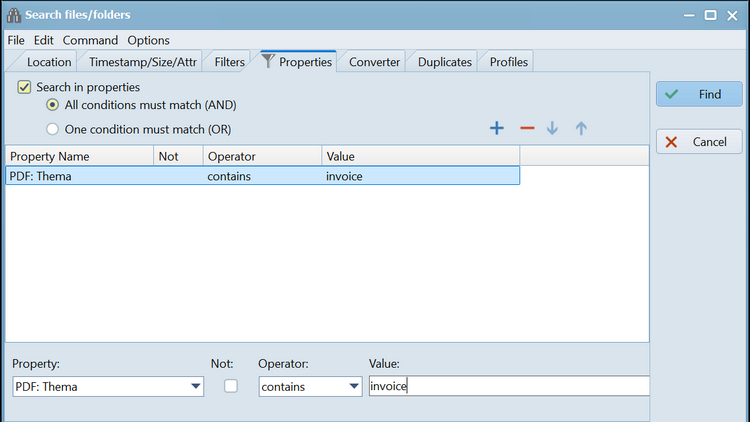
Main menu - File - Search... - tab Properties |
|

Implemented in the 64 bit version.
Activating the menu item "File → Search..." or the shortcut "Ctrl+F" opens the "Search files/folders" dialog.
In the tab "Properties" the search results configured in the tab "Location" can be additionally filtered using various properties.
Search in properties
If the list of properties contains at least one row, this setting can be checked.
Only if this setting is checked will the list be filtered by properties.
If this setting is checked, you can specify whether:
- all conditions (rows, properties) must be met (AND condition)
- only one condition (row, property) must be met (OR condition)
Editing the list of properties
The following buttons are available for editing the list of properties:
 : Select and add a new property (new row)
 : delete the highlighted row
 : move the highlighted row up
 : move the highlighted row down
Editing a row (property)
The selected row (property) can be edited in the following contents:
- Property
In the selection box, a property can be chosen that overrides the property in the selected row. - Not
If this option is checked, the conditions of the selected row (operator and value) are negated (NOT). - Operator
The available operators differ as follows:
If the property content is numeric:
▪ Operators: >, <, ≥, ≤, =
If the content is text, operators:
▪ contains and start with are case-sensitive
▪ contains - case and start with - case are case-insensitive
▪ =
- Value
The value, the content of the property